
You can easily import Visio files into GitMind and convert them into editable flowcharts, as well as export your diagrams back to Visio format for seamless workflow compatibility. Follow the steps below to get started.
Import Visio File
- Click “New Flowchart” button.
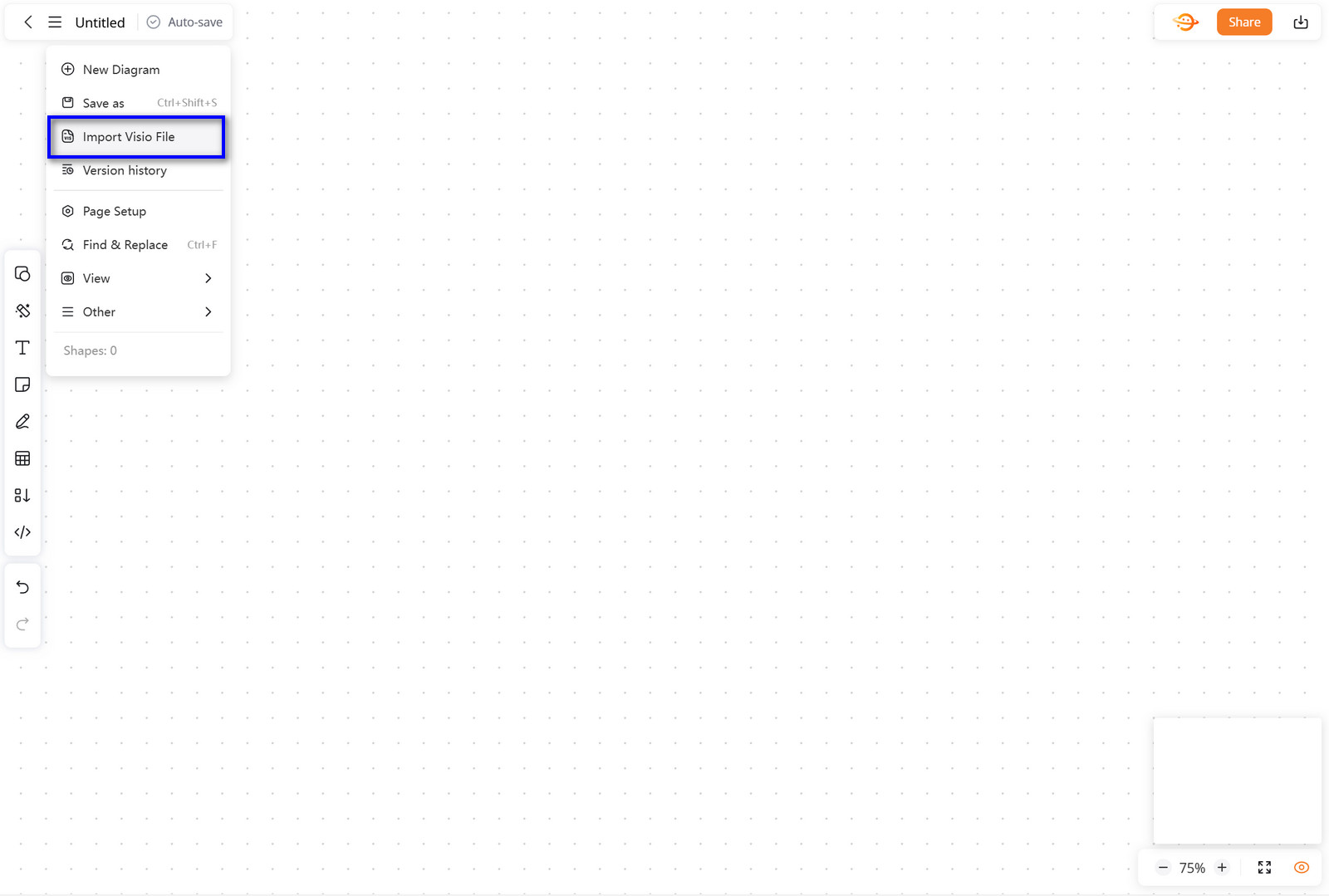
- To import a Visio file, click the menu icon (three horizontal lines) in the top-left corner or use the import option from the file menu.
- Select Import Visio File and upload your visio file.
- GitMind will automatically convert the Visio file into an editable flowchart.
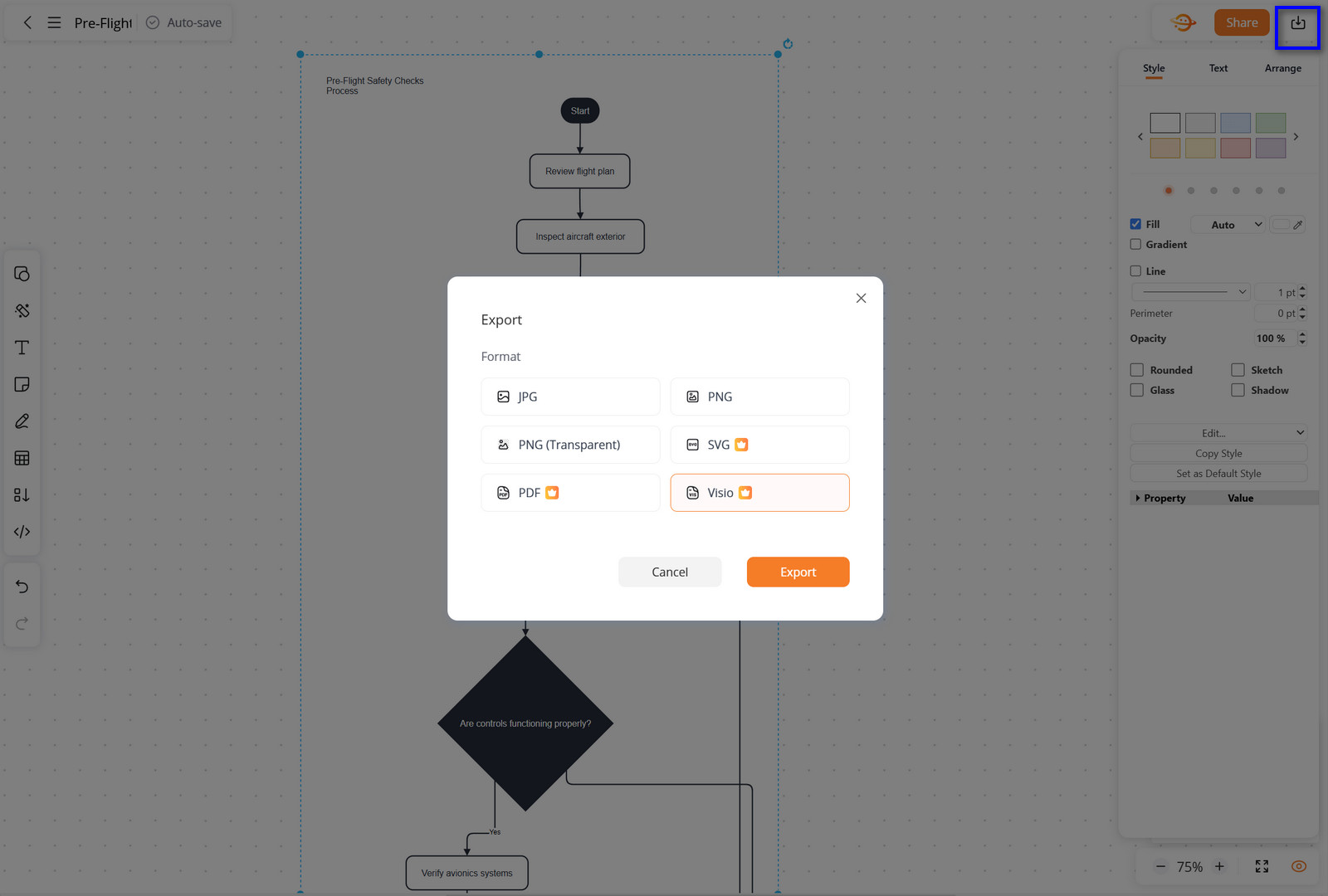
- After editing, you can export your diagram by clicking the download icon.
- Select Visio file to download your flowchart in visio format.
- You can continue editing in GitMind or reuse the exported file in Microsoft Visio.
Export Visio File
This allows you to seamlessly switch between GitMind and Visio while keeping your diagrams fully editable and compatible.

Leave a Comment