
Insert Interlink
You can use the Interlink feature in GitMind to connect related content across different files, nodes, or ideas. This helps keep your mind maps clean and focused, while still allowing easy access to additional information when needed.
Insert Interlink
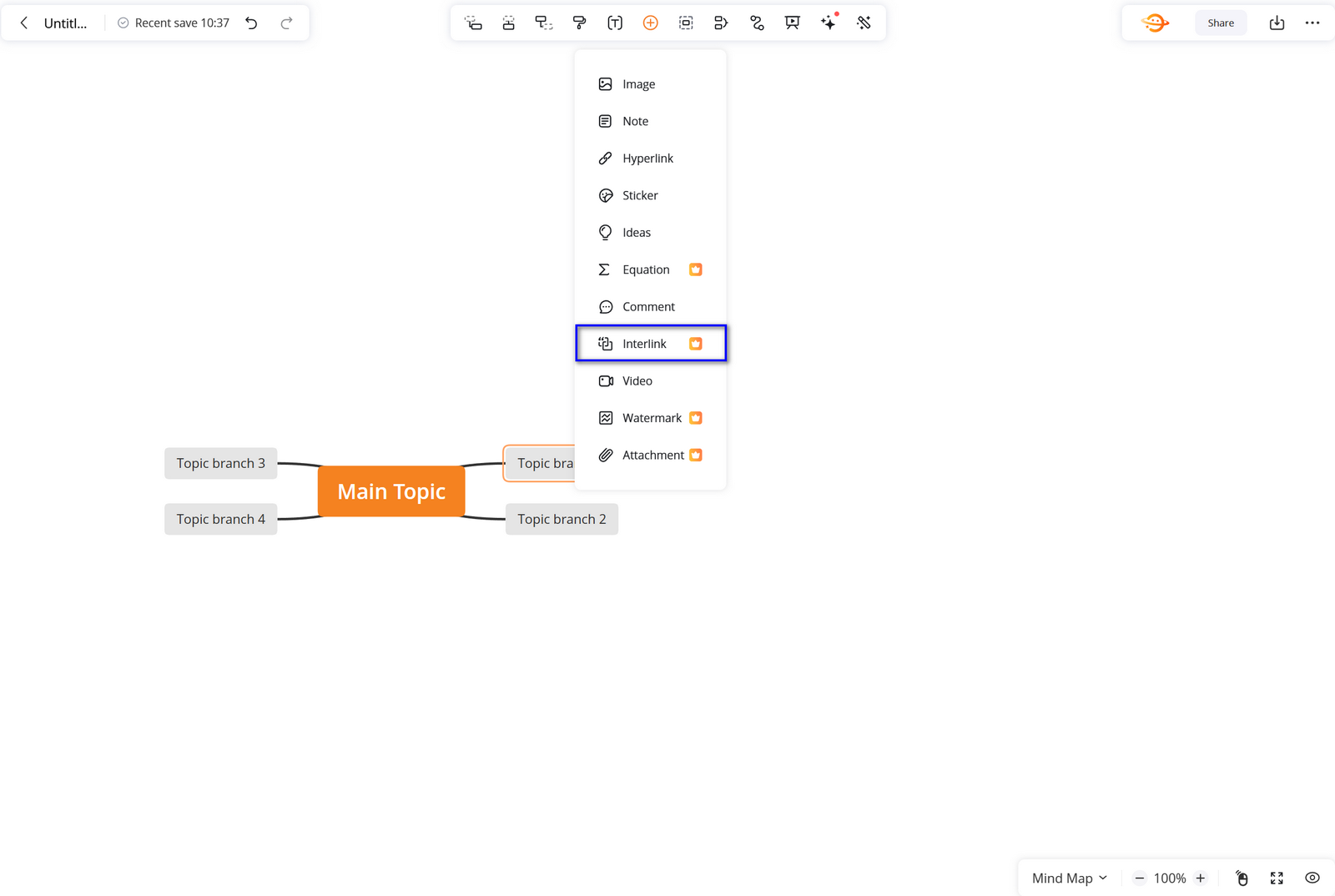
- Open your mind map and select the node where you want to add a link.
- Click the + button in the top toolbar.
- Select Interlink from the options.
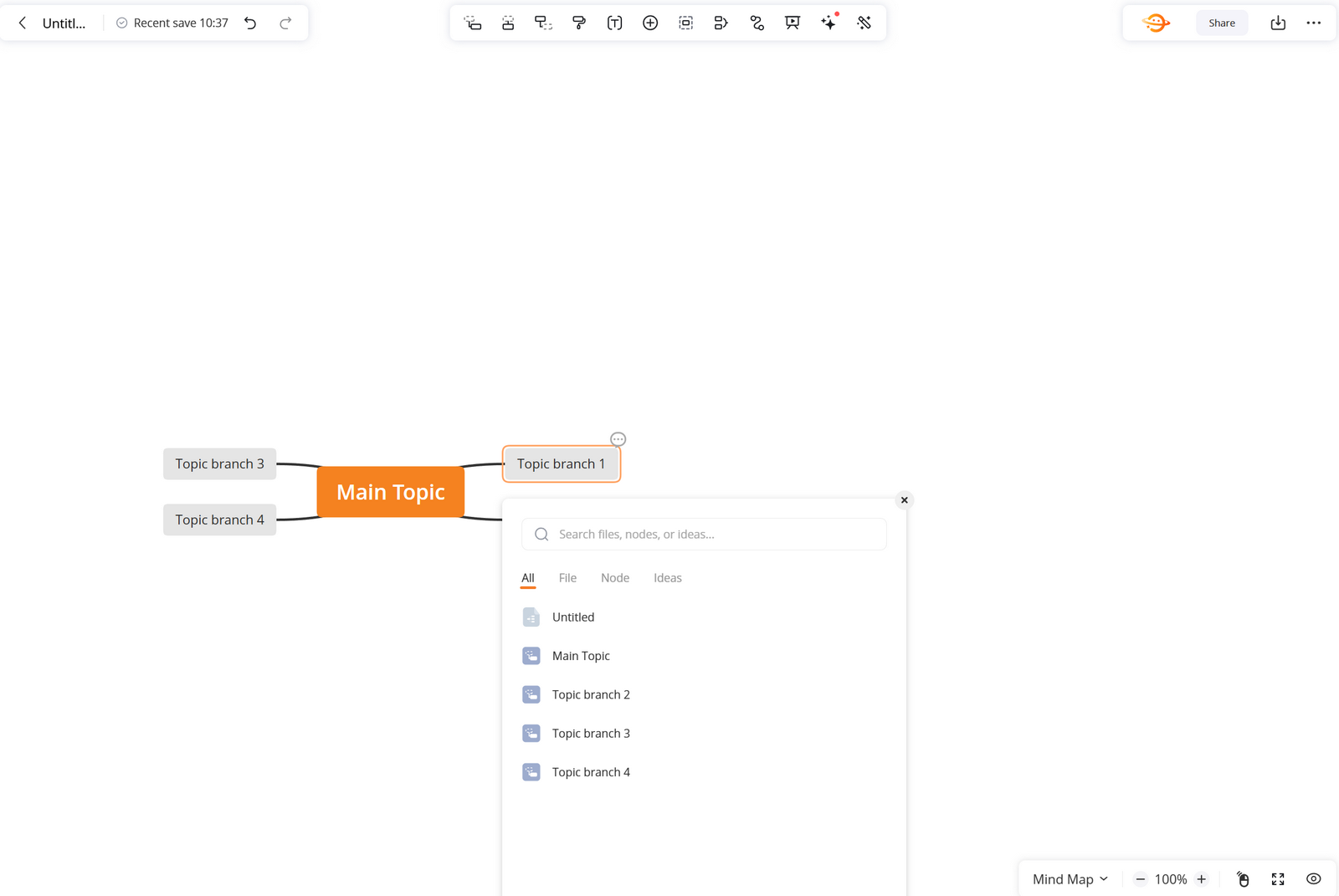
- Choose the file, node, or idea you want to link to.
- If you don’t see the content you need, enter keywords in the search box to find it.
- Click to insert the interlink into the selected node.
Open Interlinked Content
Once added, an interlink icon will appear on the node. Click the icon to quickly open and navigate to the linked file, node, or idea.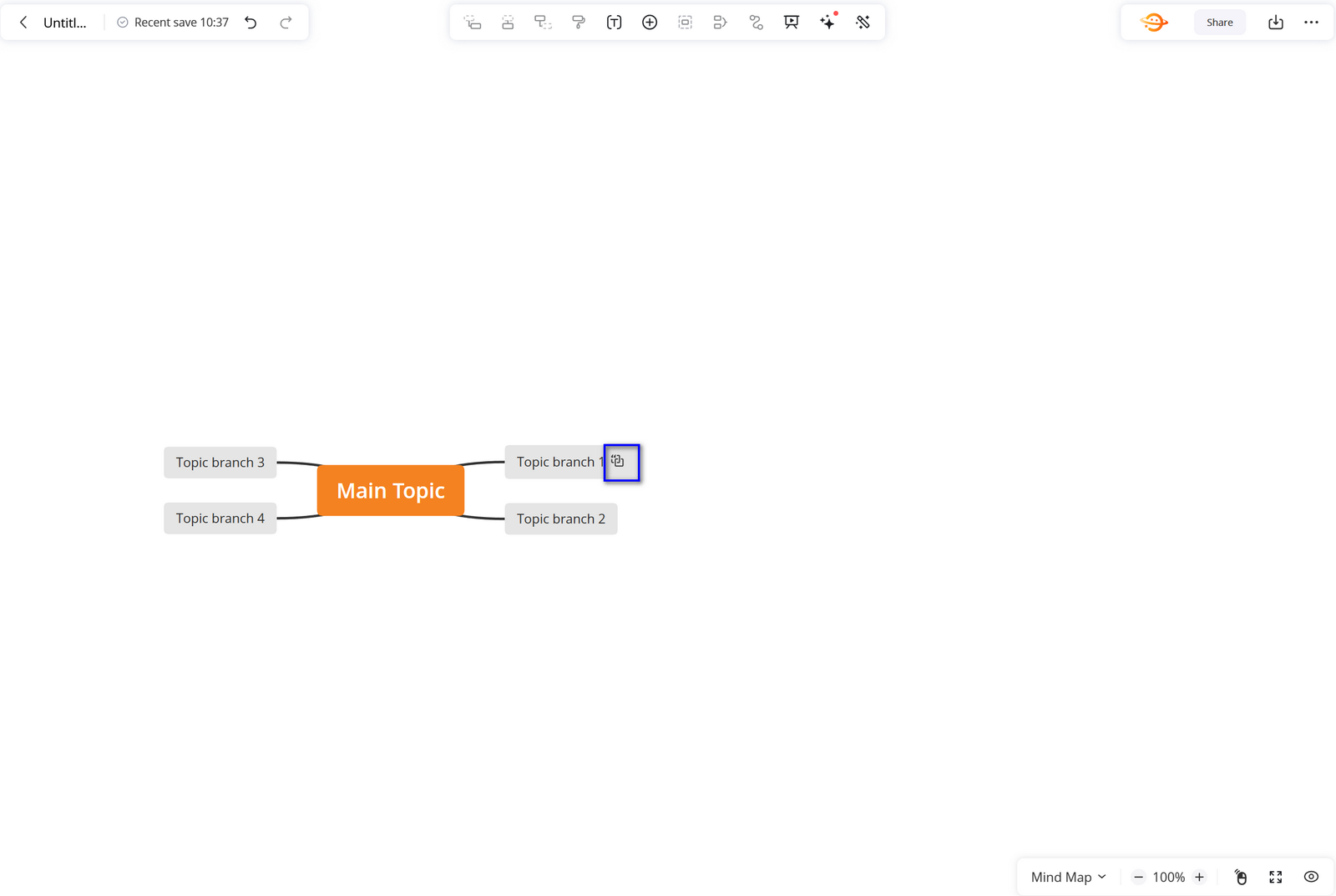
This feature helps you avoid overly long mind maps, making it easier to stay focused on key points while still keeping related information easily accessible.

Leave a Comment