
GitMind supports creating multiple canvases within a single mind map file, making it easier to organize different topics, projects, or ideas without creating separate documents. Each canvas can have its own theme and layout, allowing you to manage multiple mind maps independently while keeping them together in one file.
Create a New Canvas
To create a new canvas, open a mind map file and click the ‘+’ button in the bottom-left corner of the editor. A new canvas will be added to the current file.
You can create multiple canvases within the same document and switch between them as needed. Each canvas supports independent theme and layout settings, so changes made to one canvas will not affect the others.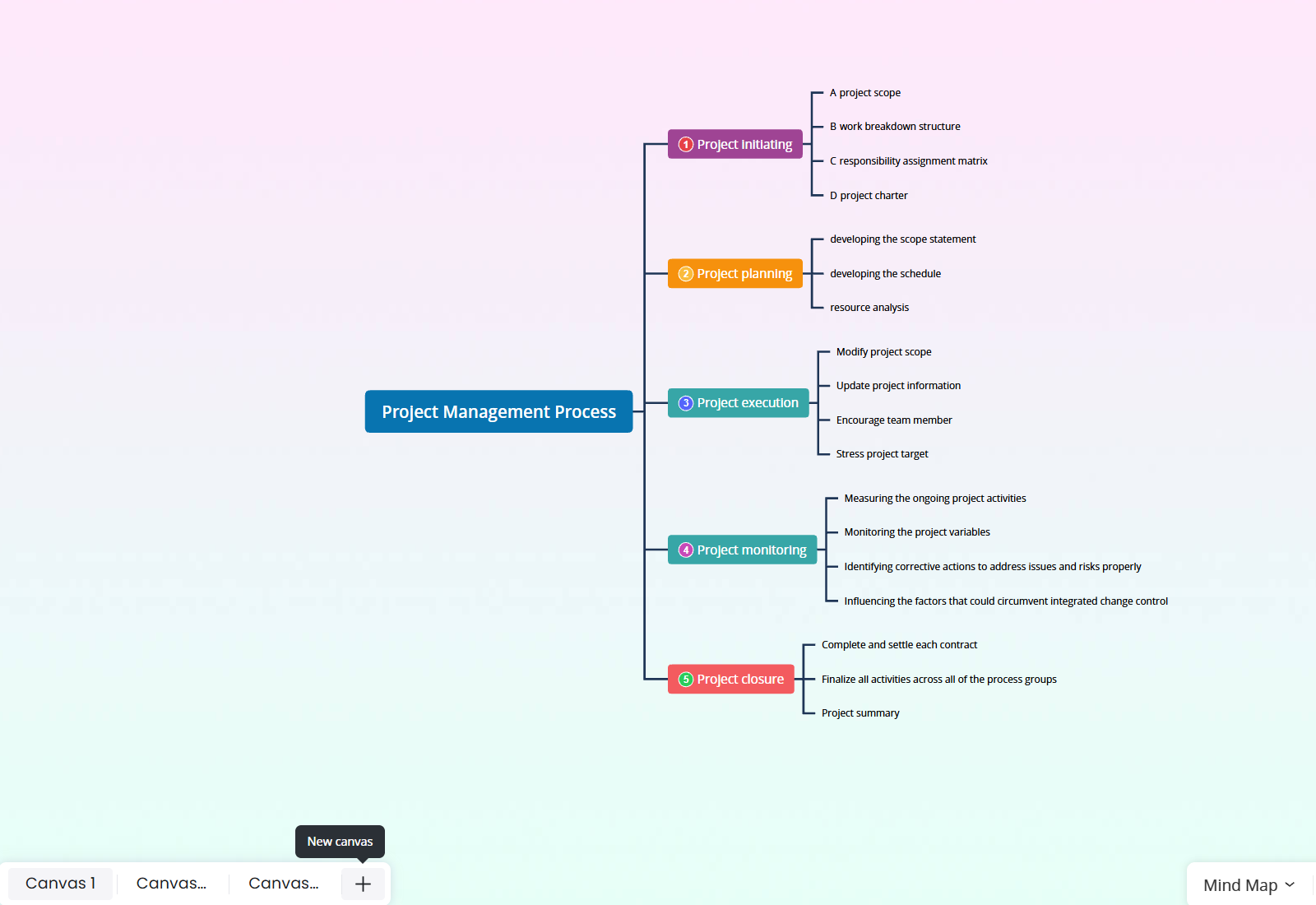
Export Multiple Canvases
When exporting your mind map, you can choose which canvases to include in the exported file.
Open the export settings and find the export range option. You can choose between ‘Current Canvas’ and ‘All Canvases’. Select ‘Current Canvas’ to export only the canvas you are viewing, or ‘All Canvases’ to include every canvas in the document.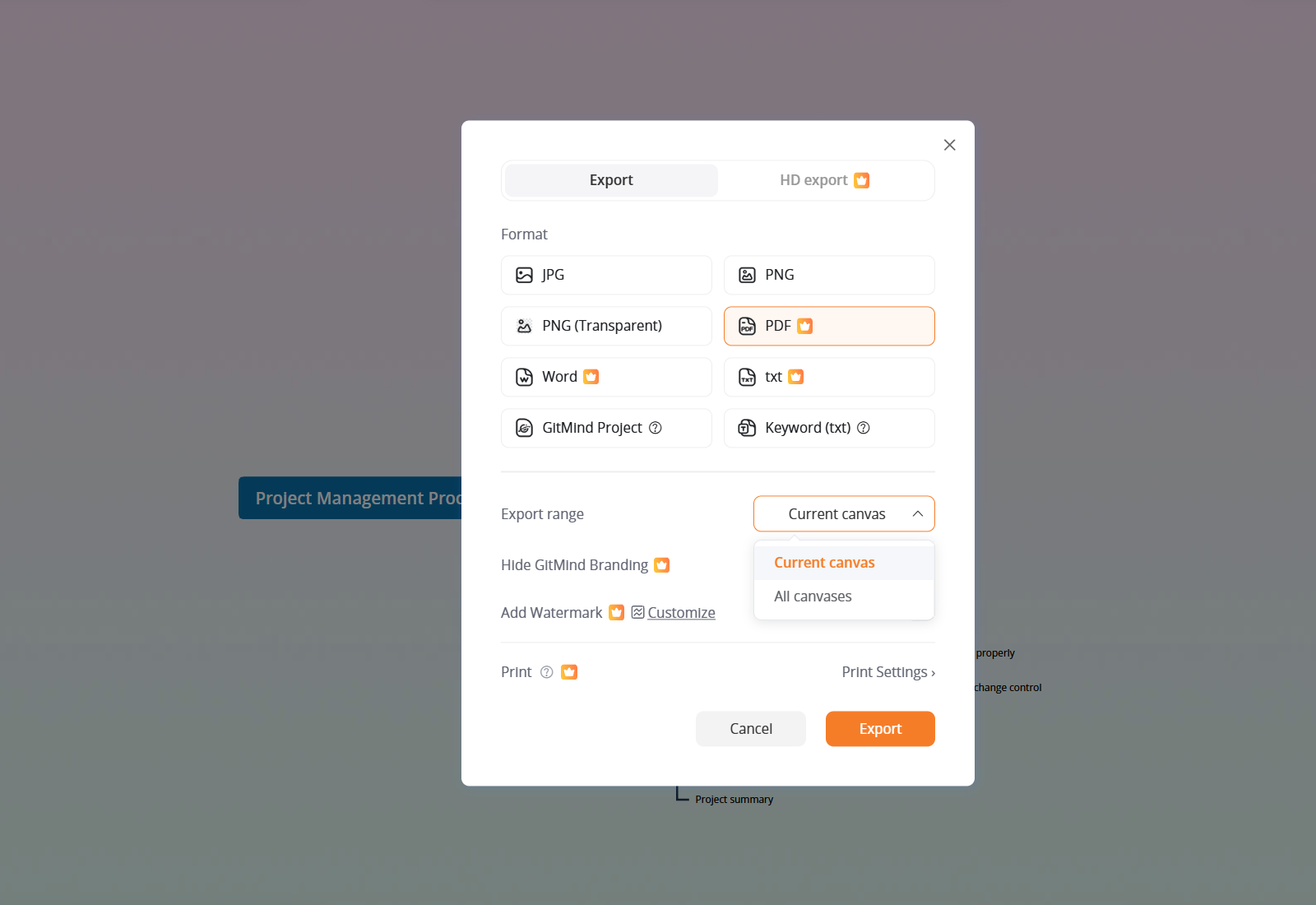
The multi-canvas feature is especially useful for managing complex projects, organizing different subjects, creating separate mind maps for related topics, or preparing presentations. It helps keep your work organized while making it easier to manage and export multiple canvases from a single file.

Leave a Comment