
GitMind offers flexible print settings to help you export and print mind maps with clearer layouts and better readability. You can customize the paper size, orientation, page splitting, print layout, and font size. You can also adjust individual pages in the print preview without affecting the original mind map in the editor.
Open Print Settings
To access the print settings, open your mind map and click the ‘Export’ button in the upper-right corner. Select ‘Print Settings’ from the export window to open the print settings panel.
The panel displays printing options on the left and a real-time print preview on the right, allowing you to adjust the settings and see how your mind map will appear when printed.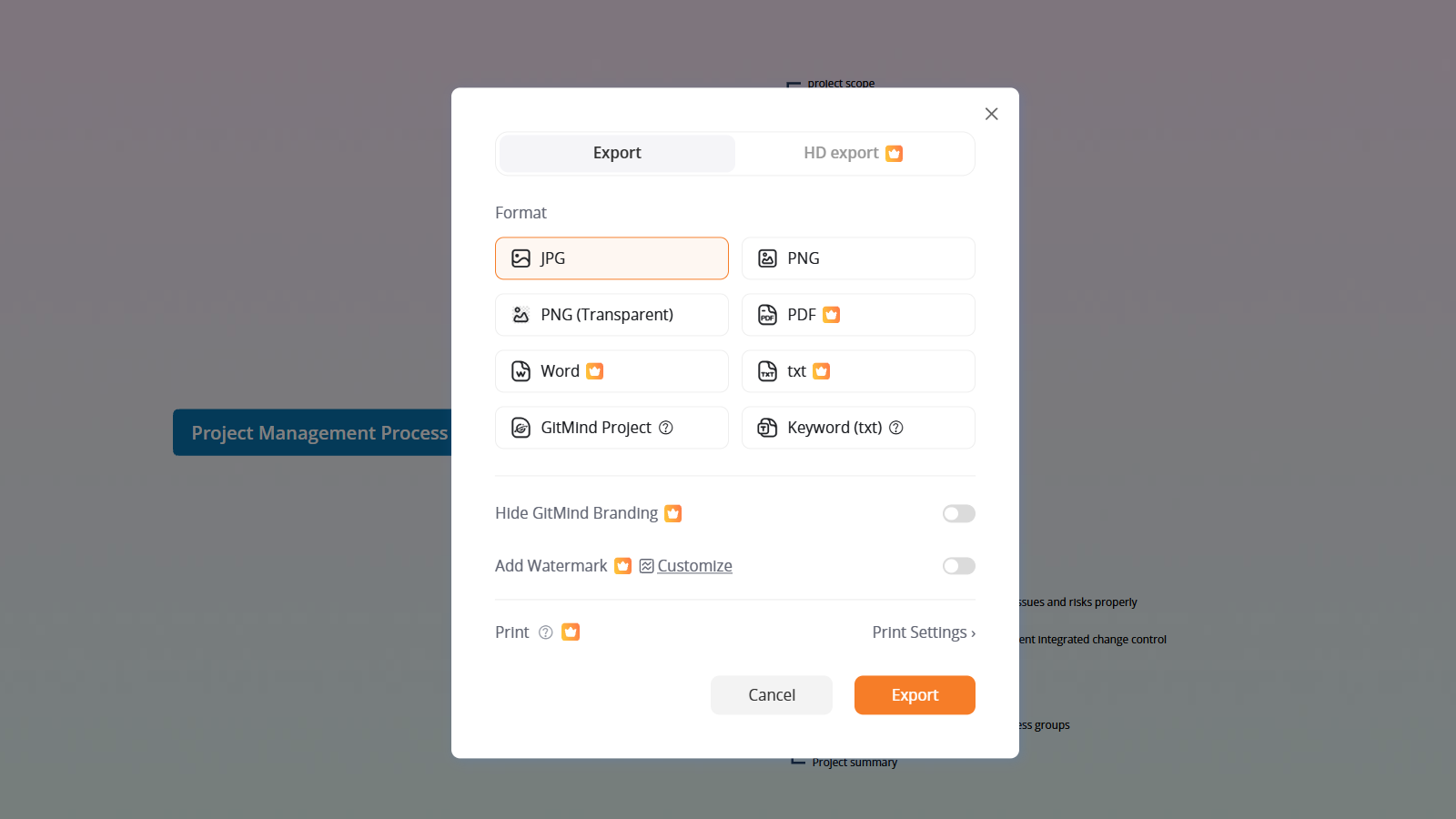
Customize Print Settings
GitMind provides several options to help you optimize your mind map for printing.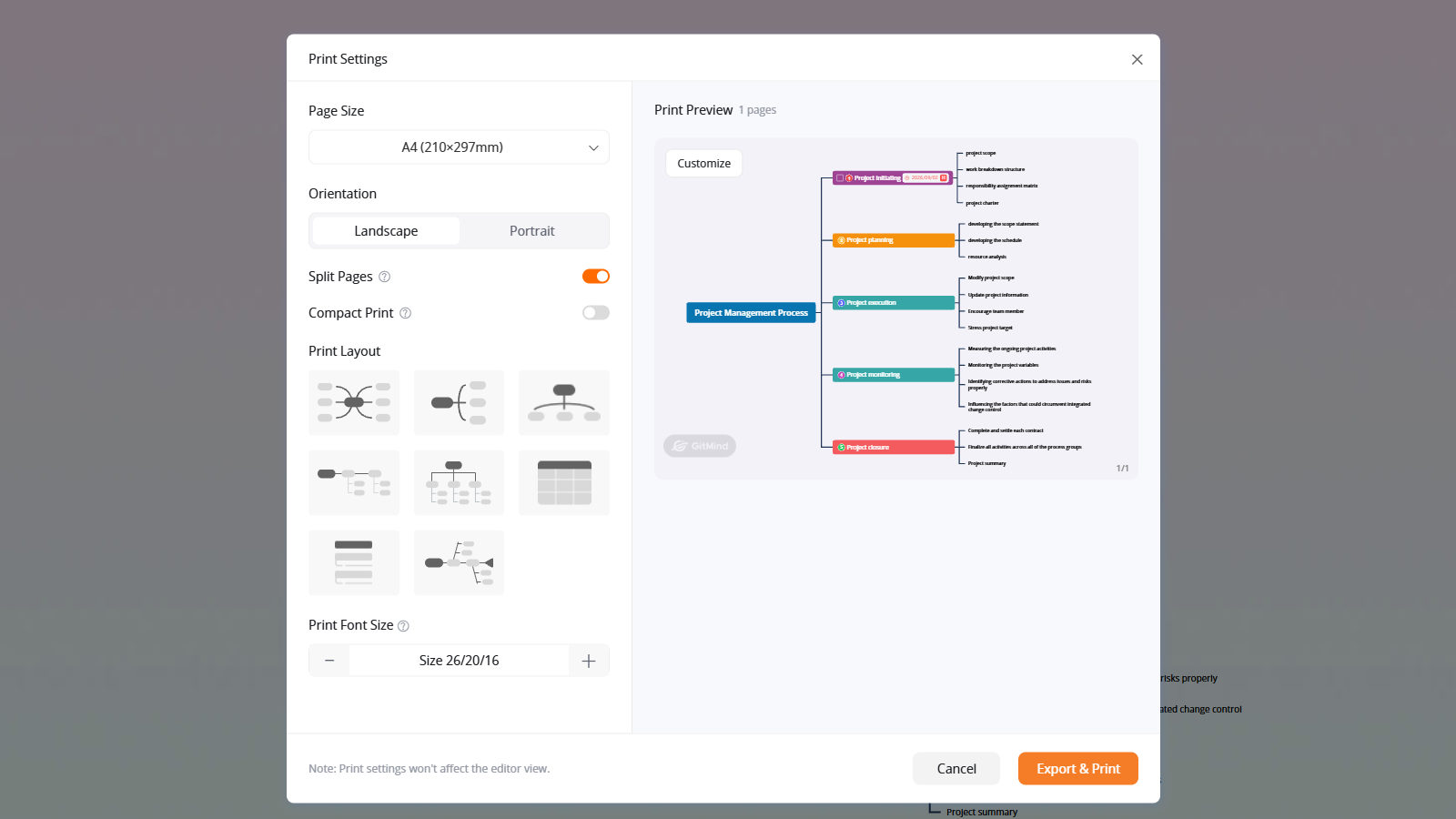
Page Size: Select your preferred paper size from the dropdown menu, such as A4, to match your printing requirements.
Orientation: Choose ‘Landscape’ or ‘Portrait’ depending on the structure and dimensions of your mind map. Landscape is often suitable for wide mind maps, while Portrait works well for vertically organized content.
Split Pages: Enable this option to automatically divide a large mind map into multiple pages based on its nodes and content. This helps prevent complex mind maps from becoming too small or difficult to read when printed on a single page.
Compact Print: Enable this option to reduce unnecessary spacing and arrange content more compactly, making better use of the available printing space.
Print Layout: Choose a layout that best fits your printing needs. You can switch between different structures to improve readability and make better use of the page space. Changes to the print layout only affect the printed output and will not modify the original layout in the mind map editor.
Print Font Size: Use the ‘+’ and ‘-‘ buttons to increase or decrease the overall font size of your mind map for printing. These adjustments only affect the print preview and printed output, leaving the font sizes in the editor unchanged.
Customize Individual Pages
In addition to the overall print settings, GitMind allows you to customize individual pages for more precise control over the final output.
In the print preview on the right, find the page you want to adjust and click ‘Customize’. You can then modify the font size and layout of that specific page without changing the settings of other pages.
This feature is especially useful when certain pages contain more content or require a different arrangement to improve readability.
Export and Print
After adjusting the settings, review the pages in the print preview to make sure the content is displayed as expected.
Click ‘Export & Print’ in the bottom-right corner to complete the process.
Print settings are especially useful for preparing mind maps for meetings, classroom materials, project presentations, study notes, and printed reports. With automatic page splitting, flexible layout options, and individual page customization, you can create clearer and more organized printouts while keeping your original mind map unchanged.

Leave a Comment