To change a word already printed in a PDF, open a text-based PDF in an editor that supports existing-text edits, such as Sejda’s online PDF editor. Click the text, make the correction, apply the changes, and download the result. If you only need to type in a blank space, an “add text” tool is enough. For a scan, OCR can recognize the words, but you still need an editor that can work with scanned pages and must check the rebuilt text and layout.
That distinction prevents a common disappointment: an editor may let you place a new text box on top of a page without changing the text underneath.
First, identify the kind of PDF you have
Open the file in your browser or PDF reader and try to select one word with your cursor.
| What happens | What it usually means | Best next step |
|---|---|---|
| You can select individual words | The page likely contains text objects | Use an editor with edit existing text |
| The whole page behaves like one image | It is likely a scan or image-based PDF | Use OCR, then inspect the recognized text |
| You can select text but cannot change it | The viewer may only support reading or annotation | Open the file in a full PDF editor |
| The text is part of a form field | It is a fillable form, not a paragraph edit | Use the form-filling controls |
Selectable text is a useful first check, but it is not a guarantee: some scans contain a separate OCR text layer while the visible page remains an image. Sejda’s help explains this distinction.
Edit existing text online with Sejda
Sejda’s online editor describes direct edits to existing text in a browser. Use a copy of your document so you can compare the result with the original.
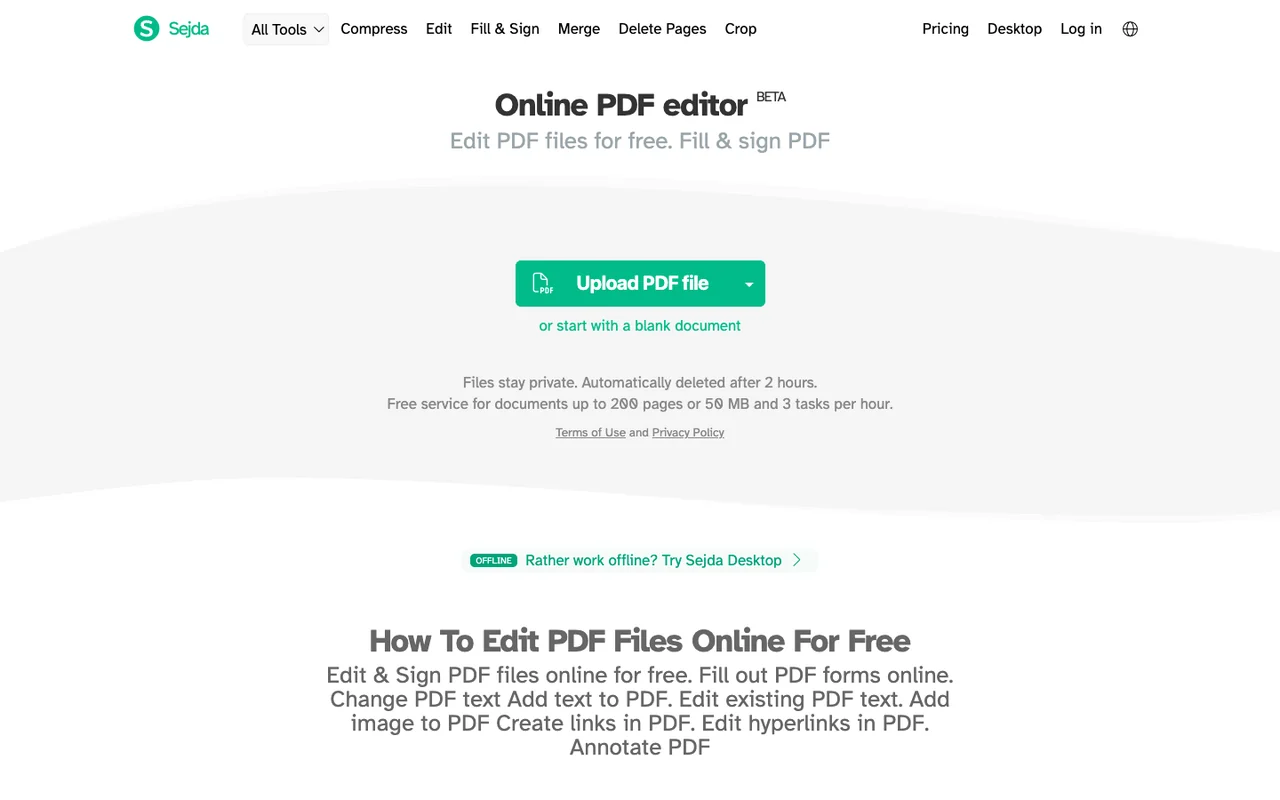
Screenshot: Sejda online PDF editor, captured November 24, 2026. Editing controls appear after a file is uploaded.
- Open the online editor and upload the PDF.
- Select Text, then click the word or paragraph you want to change.
- Type the correction. Check the font, line wrapping, spacing, and any text that moved onto another line.
- Choose Apply changes, then download the edited PDF.
- Reopen the downloaded file. Search for the new wording and inspect the whole page at normal zoom.
This route suits a short correction in a text-based PDF. Sejda says it does not support changing text inside scanned pages, even with a paid plan. Its free service also has task and file limits, so check the limits shown on the editor before starting a long document.
Use Acrobat on the web when you already have access
Adobe’s guide to Acrobat on the web describes adding, replacing, and deleting PDF text in a browser. Sign in, open your PDF, choose its editing controls, select the text, and save the result. The available tools depend on your account: Adobe’s free online editor page says the free version can annotate and mark up a document but cannot change existing body text.
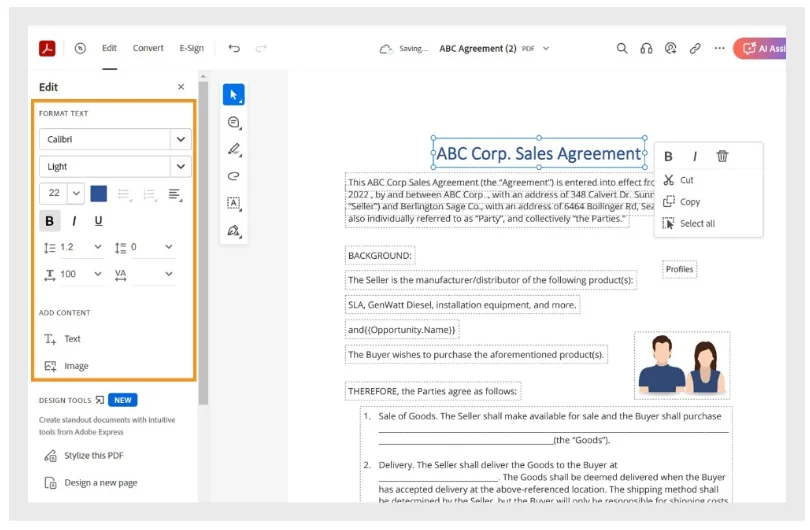
Screenshot from Adobe’s Acrobat web help, archived October 15, 2026. Controls may vary by account and update.
For a one-line correction, check whether your account offers the edit control before reorganizing the document. If you still own the editable source file, changing that file and exporting a fresh PDF may produce cleaner line breaks.
What if the PDF is a scan?
A scan stores visible letters as pixels. OCR converts those pixels into recognized text, but recognition can misread names, numbers, tables, and unusual fonts. Adobe’s scanned-PDF guide describes applying OCR in Acrobat’s desktop editor before changing text.
For a scanned page:
- Keep the original scan.
- Run OCR in a tool that supports it.
- Check names, dates, numbers, and headings against the image.
- Make the correction in the editable copy.
- Export the PDF and inspect the final page visually and with text search.
OCR cannot restore detail that the scan never captured. When a page is severely blurred or cut off, rescanning the source may be faster and more accurate.
Add text when the original text does not need to change
For a note, label, or blank form space, choose an add text or free text control. Click where the new text belongs, type it, and download the file. This is useful for notes and form completion, but it is not the same as correcting an existing sentence. If you cover old text with a white rectangle, the old wording may still exist in the file and appear in search or copy-and-paste. Use a proper edit or redaction workflow for confidential content.
Check the finished PDF before sharing it
- Search for both the new and old wording. A hidden old text layer is a sign that the edit may be only visual.
- Scan the whole page for shifted text, changed fonts, or clipped lines.
- Check links, page numbers, and form fields if the document has them.
- Open the download in a second viewer or device when layout matters.
- Use an offline editor for confidential files if your organization restricts uploading them to a web service.
If the corrected PDF is a study or project document, GitMind’s PDF-to-mind-map tool can help turn its content into a topic outline after the edit. Compare the generated outline with the actual file before using it for study or decisions; the map does not replace the final PDF check.
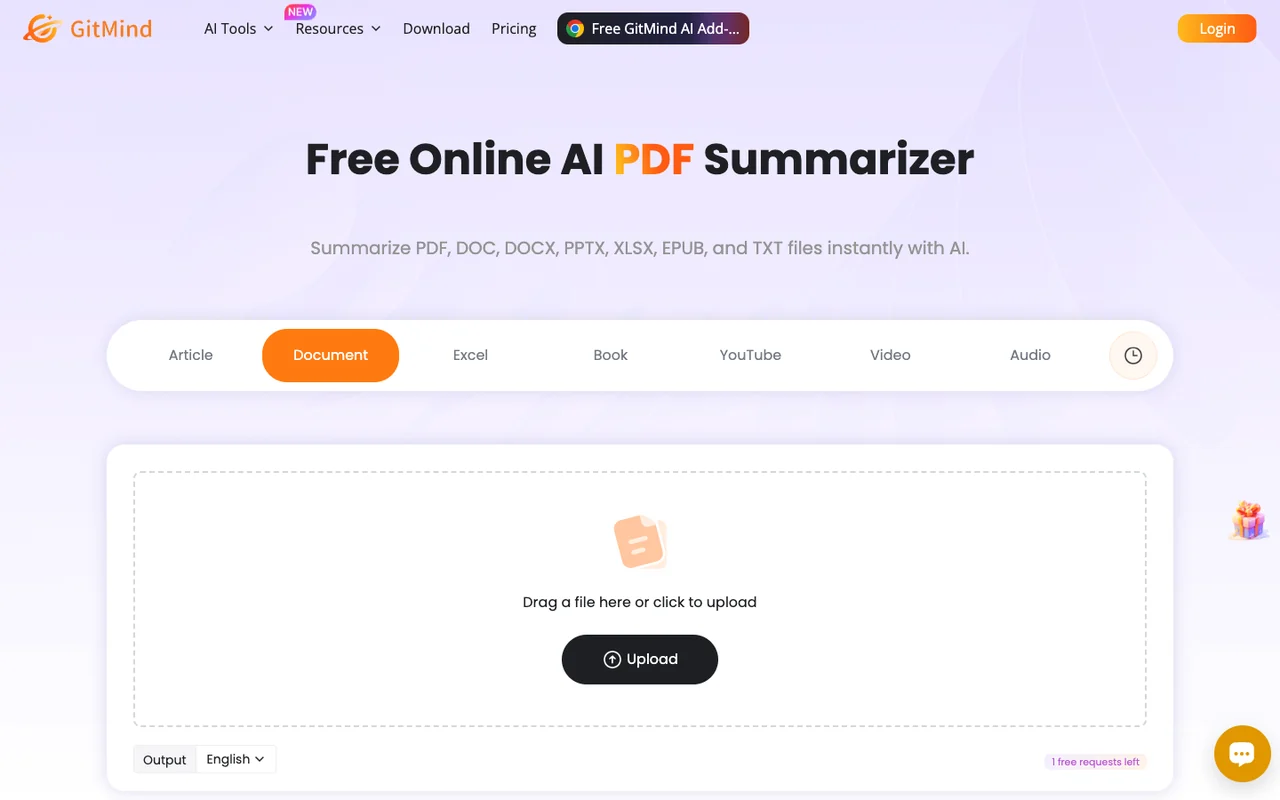
Screenshot: GitMind PDF summarizer, captured November 24, 2026.
For a wider choice of tools, GitMind also has a PDF editing apps comparison. Check each app’s current features before choosing one for existing-text edits; many free tools focus on annotations.
FAQ
Why can I select words but still cannot edit them?
The PDF may have an OCR text layer over a scanned page, or you may be using a viewer that only allows selection and comments. Try a full PDF editor. If clicking the visible sentence never selects an editable text block, work from the source document or run OCR in a tool that supports scanned-page editing.
Will the new text keep the same font?
Sometimes. Missing or embedded fonts can cause substitutions, especially after adding characters the original font did not contain. Inspect the saved PDF at normal zoom and in a second viewer before sharing it.
Can I edit a password-protected PDF online?
Only if you have the necessary permission and a tool that accepts the file. Ask the document owner for an editable source or an authorized unlocked copy instead of trying to bypass its restrictions.

Leave a Comment