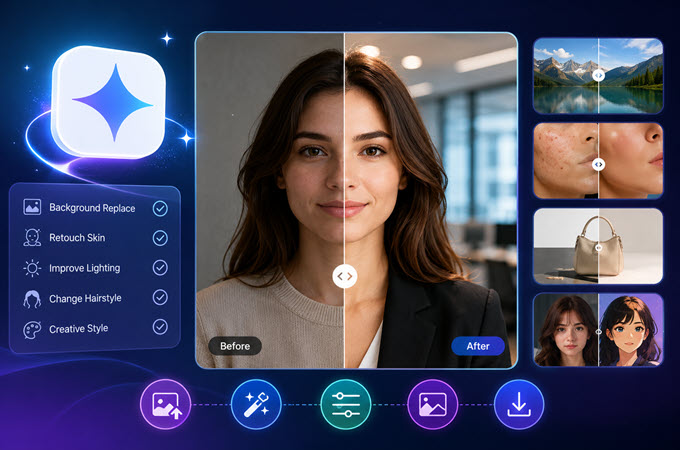
Editing a photo with AI can be surprisingly easy. You can remove an object, change a background, fix poor lighting, or even try a completely different style with just a few instructions.The tricky part is getting the result you actually want.
A short prompt like make this photo better leaves too much room for interpretation. The AI might change the person’s face, alter the clothes, or make the lighting look unnatural. This is why having clear Gemini prompts for image editing can make a big difference.
The good news is that you don’t need complicated instructions. A useful prompt simply needs to explain what you want to change and what you want to keep.
- 10 Best Gemini Prompts for Image Editing
- Platform Engine Comparison
- How to Customize These Gemini Prompts
- Tips: Organize Your Gemini Prompts With GitMind AI
- Frequently Asked Questions
10 Best Gemini Prompts for Image Editing
1. Professional Headshot Prompt
A regular photo can be turned into a clean professional headshot without taking another picture. This can be useful for LinkedIn, resumes, company profiles, or other professional accounts.
Prompt:
Edit [IMAGE] into a professional headshot. Replace the background with a softly blurred modern office. Change the clothing to a charcoal gray blazer with a white shirt. Preserve the person’s exact facial features, skin tone, hair, eye shape, and natural proportions. Improve the lighting with a soft studio light from the front-left. Keep the result realistic and professional.
The important part is telling Gemini what should stay the same. Without those instructions, an image editor may make changes to the face or other parts of the photo that you didn’t ask for.
2. Background Replacement Prompt
Changing a background is one of the most useful things you can do with an AI image editor. You can turn a simple indoor photo into an outdoor portrait or replace a messy room with a clean studio.
Prompt:
Replace the background of [IMAGE] with [NEW BACKGROUND]. Keep the subject’s face, hair, clothing, pose, and body proportions unchanged. Match the lighting, shadows, color temperature, and reflections of the new environment with the subject so the final image looks naturally photographed in the new location.
Don’t stop at describing the new background. Think about how the subject would look if they were actually standing there.
For example, if you move someone from an indoor room to a sunny street, the lighting on their face should also make sense for the new setting.
3. Lighting and Color Correction Prompt
Sometimes a good photo simply needs better lighting. Maybe the image is too dark, the colors look dull, or the white balance feels off.
Instead of changing the entire photo, you can ask Gemini to focus on those areas.
Prompt:
Improve the exposure, contrast, white balance, and color of [IMAGE]. Add soft natural lighting coming from the upper-right while maintaining realistic shadows. Preserve the original facial features, skin tone, clothing, and composition. Keep natural skin texture and avoid making the image look overly processed.
This type of prompt works well when you like the original photo but want it to look cleaner and brighter.
If you want a particular mood, you can also change the lighting description. Try warm evening light, soft window light, or cool indoor lighting.
4. Natural Skin Retouching Prompt
AI photo editors can make skin look too smooth if you simply ask them to remove imperfections. The result can sometimes look more like a filter than a real photo.
For a more natural edit, be specific about what should be removed.
Prompt:
Retouch [IMAGE] by removing temporary acne, redness, dust, and minor blemishes. Preserve natural pores, fine lines, facial structure, skin tone, and original lighting. Do not reshape the face or create overly smooth skin. Keep the final result realistic, detailed, and natural.
This is one of those cases where telling the AI what not to do is just as useful as telling it what to do.
You can also adjust the prompt depending on the photo. For example, you might ask it to remove a temporary blemish while keeping freckles or other natural features.
5. E-Commerce Product Photo Prompt
Product photos need a little more care because small details matter. Changing the shape of a product or accidentally altering a logo can make the edited image unusable.
This prompt is designed for online stores, catalogs, and product listings.
Prompt:
Edit [PRODUCT IMAGE] into a clean e-commerce product photo. Place the product on a pure white #FFFFFF background with a soft natural contact shadow underneath. Remove dust, fingerprints, and unwanted reflections. Preserve the exact product shape, proportions, logo, colors, materials, and small details. Keep the product realistic and sharp.
The instructions about preserving the product are important. If the logo, color, or shape needs to stay exactly as it is, say so.
You can also replace the white background with a lifestyle setting if you want a more creative product image.
6. Hairstyle and Hair Color Change Prompt
Wondering what you’d look like with a different hairstyle? AI editing can give you an idea without making a real change first.
Prompt:
Change the hairstyle in [IMAGE] to [HAIRSTYLE] and change the hair color to [COLOR]. Keep the person’s face, facial structure, skin tone, eye color, body proportions, clothing, and pose unchanged. Make the new hair look naturally connected around the forehead, ears, neck, and shoulders. Preserve realistic individual hair strands and lighting.
Hair can be tricky because it touches several parts of the face and body. Mentioning the forehead, ears, neck, and shoulders helps keep the new hairstyle from looking like it was simply placed over the original photo.
You can use the same format to test short hair, long hair, curls, bangs, or different hair colors.
7. Cinematic 35mm Film Prompt
You don’t always need to make a major change to create a different mood. A film-inspired look can give an ordinary photo a warmer and more classic feel.
Prompt:
Give [IMAGE] a realistic 35mm film photography look. Add subtle film grain, natural lens characteristics, soft highlights, gentle contrast, and slightly warm colors. Preserve the original subject, facial features, pose, clothing, and composition. Keep the effect subtle and photographic rather than looking like a digital filter.
The more specific you are about the look, the easier it is to get something close to what you have in mind.
Instead of simply saying make it cinematic, describe the parts you want, such as film grain, softer highlights, warm colors, or gentle contrast.
8. Anime or Illustration Transformation Prompt
AI image editing can also be used for creative transformations. A regular portrait can become an illustrated character while still keeping some of the original features.
Prompt:
Transform [IMAGE] into a detailed 2D Japanese anime-style illustration with clean linework, expressive lighting, and smooth cel shading. Preserve the person’s pose, hairstyle, hair color, clothing design, and overall composition. Keep recognizable facial characteristics while adapting the image naturally to the illustration style. Avoid a 3D CGI appearance.
The same idea can work for other art styles. You can replace the anime description with watercolor, comic-book art, pencil drawing, or another style.
The key is to explain which parts of the original image should remain recognizable.
9. Low-Light Photo Enhancement Prompt
Night photos often have noise, grain, and areas that are difficult to see. Brightening everything too much can also destroy the original mood.
Try this prompt when you want to clean up a dark photo without making it look like it was taken during the day.
Prompt:
Improve [IMAGE] by reducing digital noise and grain while keeping the original nighttime atmosphere. Sharpen important details without creating artificial edges. Preserve street lights, realistic shadows, natural colors, and the existing mood. Do not turn the scene into daylight or over-brighten the background.
The phrase preserve the original nighttime atmosphere is especially useful here.
If you are editing a concert photo, city street, night portrait, or evening landscape, you usually want the darkness to remain part of the image.
10. Multi-Action Image Editing Prompt
Some photos need more than one change. Instead of putting everything into one long paragraph, you can separate each instruction.
Prompt:
KEEP: Preserve the person’s face, hair, pose, clothing, and body proportions.
REMOVE: Remove [UNWANTED ELEMENT].
REPLACE: Replace [CURRENT ELEMENT] with [NEW ELEMENT].
ADJUST: Improve [LIGHTING/COLOR/EXPOSURE].
PRESERVE: Keep realistic shadows, natural textures, and the original composition.
This format is useful when you need to make several edits at once.
It also makes the prompt easier to change later. If you decide you want a different background, for example, you only need to change the REPLACE instruction.
Platform Engine Comparison
Not every AI image-editing platform handles prompts in exactly the same way. Some work well with natural, conversational instructions, while others respond better to concise keywords, strict syntax, prompt weights, or selection-based editing.
Understanding these differences can help you structure your image editing prompts for Gemini and other platforms more effectively.
| Platform / Model | Syntax Style | Identity Preservation | Best Use Case |
| Google Gemini (Flash/Pro) | Conversational natural phrasing | High (Solid multimodal anchor tracking) | Complex semantic edits, relighting, headshots |
| Nano Banana Engine | Concise imperative keyword tags | High (Fast local edge preservation) | Quick mobile edits, rapid background swaps |
| Midjourney (Vary Region) | Strict syntax & prompt weights | Moderate (Tends to shift facial features) | Creative restyling, fantasy concept art |
| Photoshop Generative Fill | Short phrases + raster mask | High (Restricted to selection mask) | Precision retouching, object removal, canvas expansion |
Which Platform Should You Use?
The right platform depends on the type of image edit you’re creating.
For complex image edits: Gemini can be used when you need to describe several changes using natural language while specifying which elements should remain unchanged.
For quick edits: Nano Banana Engine is designed around concise instructions and can be used for fast changes such as background swaps.
For creative transformations: Midjourney can be used for more artistic and stylistic transformations, including fantasy artwork and major visual restyling.
For precise object-level edits: Photoshop Generative Fill can be useful when you want to target a specific area using a selection mask.
The key takeaway is that prompt style matters. A prompt that works well on one image-editing platform may need to be shortened, reorganized, or rewritten for another.
How to Customize These Gemini Prompts
You don’t have to use these prompts exactly as they are.
Most of them follow a simple pattern:
What should stay + What should change + How the final image should look
For example, if you want to change someone’s background, you could start with:
Preserve the person’s face, hair, clothing, and pose. Replace the background with [BACKGROUND]. Match the lighting and shadows to the new environment.
From there, you can add more details if needed.
Replace the bracketed sections with your own information, such as:
- [IMAGE]
- [BACKGROUND]
- [HAIRSTYLE]
- [COLOR]
- [UNWANTED ELEMENT]
- [LIGHTING]
You can also save versions of prompts that give you good results. Over time, you’ll have a collection that you can reuse instead of writing a new prompt every time you edit a photo.
Tip: Organize Your Gemini Prompts With GitMind AI
After trying different image editing prompts for Gemini, you may eventually have quite a few saved prompts. One might be for portraits, another for product photos, and another for background changes.
The problem is finding the right one later.

This is where a visual organization tool like GitMind AI can be useful. Instead of keeping all your prompts in one long document, you can arrange them into categories and connect related ideas.
For example, you could create a visual prompt library like this:
Gemini Image Editing Prompts
Portraits
- Professional Headshots
- Skin Retouching
- Hairstyle Changes
Backgrounds
- Office
- Studio
- Outdoor
Product Photos
- White Background
- Product Cleanup
- Lighting
Creative Styles
- 35mm Film
- Anime
- Illustration
Photo Enhancement
- Low-Light Photos
- Noise Reduction
- Color Correction
You can also add different versions of the same prompt and make notes about which instructions worked well.
The benefit is simple: instead of searching through old chats or notes, you have one visual place to keep your favorite Gemini prompts for image editing.
Frequently Asked Questions
1. What are the best Gemini prompts for image editing?
The most useful Gemini prompts clearly describe what you want to change and what you want to preserve. For example, you can specify a new background while instructing Gemini to keep the person’s face, hair, clothing, pose, and proportions unchanged.
2. How do I make Gemini preserve a person’s face?
Include explicit preservation instructions in your prompt. Mention the facial features, skin tone, hair, eye shape, facial structure, and natural proportions that should remain unchanged. This gives the model clearer boundaries for the edit.
3. Can I use these prompts for product photos?
Yes. Product-editing prompts can specify that the exact product shape, proportions, logo, colors, materials, and small details should be preserved while changing the background or cleaning up imperfections.
4. How can I make AI skin retouching look more natural?
Avoid vague instructions such as make the skin perfect. Instead, identify specific temporary blemishes or imperfections you want removed and tell the AI to preserve natural pores, fine lines, skin texture, and facial structure.
5. What is the basic formula for writing an effective image-editing prompt?
A simple formula is:
What should stay + What should change + How the final image should look
Conclusion
Good AI image editing doesn’t always require complicated prompts. In many cases, the biggest improvement comes from being clear about two things: what you want to change and what you want to keep.
Start with these 10 prompts, adjust the details for your own photos, and save the versions that give you results you like. As your collection grows, organizing them with GitMind AI can make it easier to find, reuse, and improve your prompts over time.

Leave a Comment