Managing passwords can become a headache when you have dozens of online accounts. You need one for email, another for social media, and several more for shopping, banking, and work. Using the same password for everything may seem convenient, but it can put your accounts at risk.
A password manager makes this easier. It stores your login details in one protected place, helps you create stronger passwords, and can fill them in when you sign in to websites.
The good news is that you do not always need to pay for one. Several tools offer free plans with useful features. In this guide, we will look at five options, compare their benefits, and help you find the best free password manager for your needs.
- What to Look for in a Free Password Manager
- Top 5 Best Free Password Managers
- How to Choose the Best Rated Password App
- What Is the Best Password Manager for Families?
- Are Free Password Keeper Apps Safe to Use?
- Free vs. Paid Password Managers: What’s the Difference?
- Frequently Asked Questions
What to Look for in a Free Password Manager
Not every password manager offers the same features. Before choosing one, consider how you use your devices and what you need to protect.
Here are a few things worth checking:
- Security: Look for strong encryption, a clear privacy policy, and support for two-factor authentication.
- Ease of use: The app should make saving and finding passwords simple.
- Device support: Check whether it works on your computer, phone, and preferred browser.
- Free plan limits: Some providers limit the number of devices or features available without payment.
- Password sharing: If you share accounts with family members, look for safe ways to share login details.
- Extra features: Password checks, passkey support, and security alerts can be useful additions.
A free plan can be enough for everyday use. The important thing is to understand its limits before moving all your passwords into it.
Top 5 Best Free Password Managers
Bitwarden — Best Overall Free Password Manager
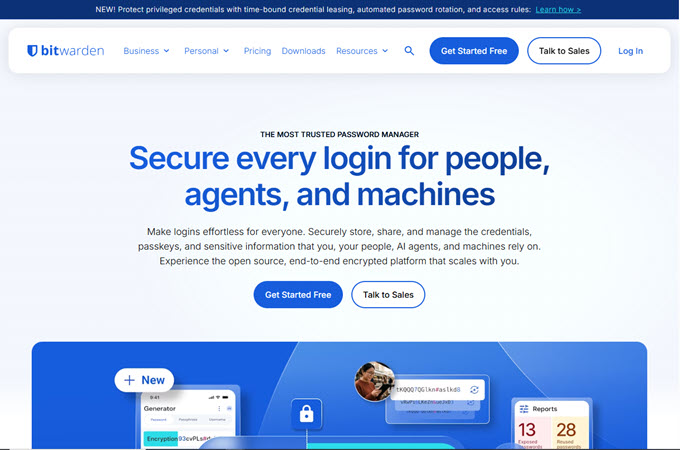
Bitwarden is a strong starting point for anyone who wants to manage passwords without paying for a subscription. It offers password storage, a password generator, and tools for saving and filling in login details.
One of its biggest advantages is that it supports different devices and browsers. This makes it easier to access your passwords whether you are using a computer at home or checking an account on your phone.
Bitwarden also offers a free plan, making it worth considering if you want useful password management features without a large upfront cost.
What we like:
- Offers a free plan for personal use.
- Helps create and store unique passwords.
- Supports browser extensions and mobile apps.
- Provides options for users who want more control over their password data.
What to consider:
The interface may take a little time to learn if this is your first password manager. Some advanced features are also reserved for paid plans.
Best for: Individuals who want a practical password manager with useful free features and support across multiple devices.
Proton Pass — Best for Privacy-Focused Users
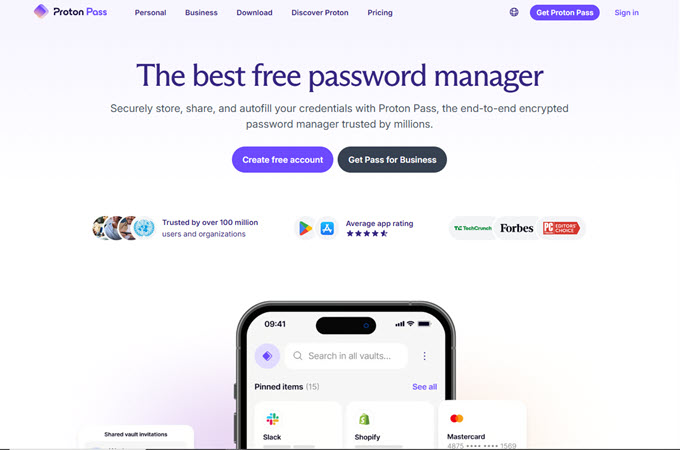
Proton Pass is a password manager from Proton, a company known for its privacy-focused online services. It helps users store passwords, usernames, and other login information in a protected vault.
It also offers email alias features on supported plans. These let you use an alternative email address when signing up for websites, helping you avoid giving your main email address to every service.
Proton Pass is worth considering if privacy is high on your list. Its simple approach can also appeal to people who want to keep their login details organized without managing several separate tools.
What we like:
- Offers password storage and autofill features.
- Includes privacy-focused tools.
- Supports password generation.
- Has a free plan for users who want to try it.
What to consider:
Some features, including expanded email alias options and other extras, may require a paid subscription. Check the current plan details before signing up.
Best for: Users who want password management alongside additional privacy features.
NordPass — Best for a Simple User Experience
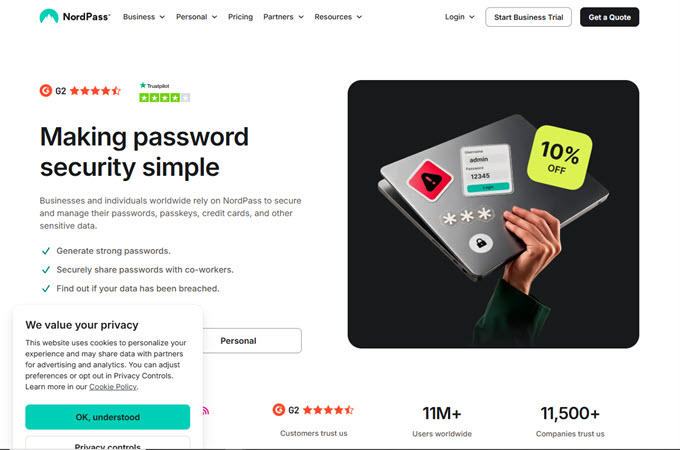
NordPass is designed to make password management straightforward. It can save login details, generate passwords, and help fill in saved information when you visit a website.
Its interface is a good fit for people who prefer a simple way to organize their accounts rather than spend time adjusting settings. It can also help reduce the temptation to reuse the same password across different websites.
NordPass has free and paid offerings, but the features available without payment may differ from those offered by its competitors.
What we like:
- Provides password-saving and autofill tools.
- Helps generate stronger passwords.
- Offers apps and browser support.
- Has additional features available through paid plans.
What to consider:
Check how the free plan handles simultaneous device use, account access, and other features before choosing it. These restrictions can matter if you regularly switch between devices.
Best for: People who want a password manager that is easy to understand and use.
Dashlane — Best for Password Security Features
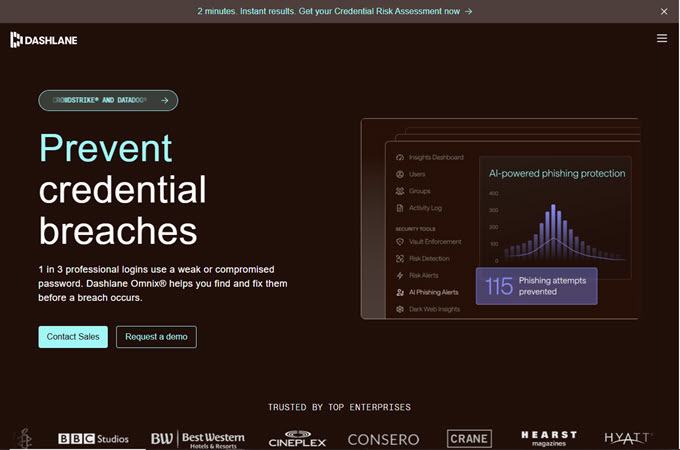
Dashlane combines password management with tools designed to help users keep their accounts safer. Depending on the plan, these may include password health checks, alerts, and other security features.
The app is worth a look if you want more than a place to store login details. Its additional tools can help you spot weak or reused passwords and take steps to improve your online security.
However, Dashlane’s free offering may be more limited than some alternatives. Before signing up, check which features are currently included at no cost and whether they meet your needs.
What we like:
- Helps store and fill in passwords.
- Offers tools for creating stronger passwords.
- Includes additional security features on eligible plans.
- Provides paid options for people who need more features.
What to consider:
The free plan may not be suitable for everyone, especially if you need broad device access or advanced features. Compare its current limits with other free password managers before making a decision.
Best for: Users interested in password management with additional security tools, provided the available plan fits their needs.
KeePass — Best for Local Password Storage
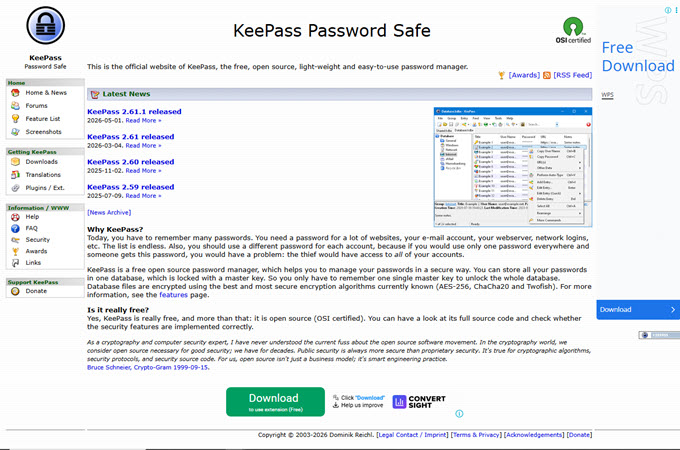
KeePass takes a different approach from password managers that automatically sync your information through an online account. It stores passwords in an encrypted database that you manage yourself.
This gives you more control over where your password file is kept. You can also customize the setup to suit your needs.
However, KeePass requires more hands-on work than many modern password apps. If you want to access the same passwords on several devices, you will need to plan how to move or sync your database safely.
What we like:
- Free and open-source software.
- Stores passwords in an encrypted database.
- Offers many customization options.
- Gives users more control over their password files.
What to consider:
The setup can be less convenient for beginners. Keeping your database backed up and available across devices also requires care.
Best for: People who prefer local storage and are comfortable managing their own password database.
How to Choose the Best Rated Password App
Finding the best rated password app involves more than checking its star rating. An app can receive positive reviews for its design while still lacking features that matter to you.
Start by thinking about your daily routine. Do you mainly use a laptop, or do you switch between a phone, tablet, and computer? Do you need to share passwords with other people? Would you rather have automatic syncing, or do you prefer keeping your data under your own control?
Once you know what matters most, compare a few options.
Here are some useful questions to ask:
- Does the free plan include the features I need?
- Can I access my passwords on my usual devices?
- Does the provider explain how it protects my information?
- Is account recovery clearly explained?
- Are recent user reviews generally positive?
- Does the app have a clear upgrade policy?
You should also look for recent information from the provider itself. Features, prices, and free-plan limits can change, so an old review may not reflect what you will receive today.
What Is the Best Password Manager for Families?
Families often share access to streaming services, shopping accounts, household subscriptions, and other online services. Keeping track of these logins can be difficult, especially when different family members use different devices.
The best password manager for families should make sharing convenient without giving everyone access to everything.
Look for features such as shared vaults, separate user accounts, and controls that let you decide who can see particular passwords. Some services also offer emergency access or other recovery options.
A free individual plan may work if each person manages their own passwords. However, if several family members need to share login details, a paid family plan may be more practical.
Before choosing a service, consider these points:
- Easy sharing: Can you share selected passwords without master password or loses access to an account?
Do not assume that a password manager with a free personal plan also offers free family sharing. Check the current plan details before deciding.
Are Free Password Keeper Apps Safe to Use?
Yes, free password keeper apps can be a sensible choice when you select a reputable provider and use the app properly. Paying for a subscription does not automatically make a password manager safer, and a free service is not automatically unsafe.
What matters is how the service protects your information and how you use it.
A good password manager encrypts stored information so that it cannot easily be read by someone who gains access to the protected data. Many services also offer extra account protection, such as two-factor authentication.
You should still take a few precautions.
Create a strong master password. This is the password you use to access your vault. Make it long, unique, and difficult to guess. Avoid using a password you already use elsewhere.
Turn on two-factor authentication. If the service supports it, this adds another step when someone tries to sign in.
Use a different password for every account. If one website suffers a data breach, a unique password helps prevent that login from being used to access your other accounts.
Keep recovery information safe. Read the provider’s recovery instructions before you need them. Losing access to a vault can be difficult to fix, depending on the service and its design.
Keep your devices updated. Install security updates for your operating system, browser, and password manager.
Finally, avoid keeping passwords in plain-text notes or spreadsheets that anyone with access to your device can open.
Free vs. Paid Password Managers: What’s the Difference?
A free password manager may offer everything you need to get started. Paid plans generally focus on additional features, more sharing options, or greater flexibility.
The exact difference depends on the provider.
| Feature | Free plan | Paid plan |
| Password storage | Usually includes core storage features | May include additional tools or capacity |
| Device access | Varies by provider | May offer greater flexibility |
| Password generation | Often available | Usually available, sometimes with extra options |
| Secure sharing | May be limited | May offer more sharing options |
| Family management | Often limited or unavailable | Family-focused plans may be available |
| Security extras | Basic features may be included | May include more alerts and monitoring tools |
| Customer support | May be limited | May include additional support options |
These are general differences, not guarantees for every product. Always review the current plan details before signing up.
For someone who mainly wants to save passwords and use them across supported devices, a free plan may be enough. Families, teams, and people who need advanced sharing features may find a paid plan more useful.
Frequently Asked Questions
1. What is the best free password manager?
Bitwarden is a strong option to consider if you want a free password manager with useful everyday features. Proton Pass is another option for privacy-focused users, while KeePass may suit people who prefer local storage. The best choice depends on your devices, preferred setup, and the features included in the current free plan.
2. Are free password keeper apps worth using?
Yes. A reputable free password manager can help you create unique passwords, store them securely, and avoid reusing the same login details. Just check its security practices, supported devices, and plan restrictions before relying on it.
3. What is the best password manager for families?
The right choice is one that supports safe password sharing, separate access for family members, and convenient use across devices. If these features are not included in a free plan, compare the provider’s family options before deciding.
4. Can I use a free password manager on multiple devices?
Some free password managers support access across multiple devices, while others may impose restrictions. Check the current terms for the service you choose, especially if you want to use it on both your phone and computer.
5. Should I save my passwords in my browser or use a password manager?
A browser’s built-in password manager can be convenient, particularly if you mainly use one browser. A dedicated password manager may offer additional options for sharing passwords, working across different browsers, or organizing login details. Compare the available features and choose the option that best fits your routine.
Conclusion
The best free password manager is the one that protects your login details while fitting naturally into your daily routine.
Bitwarden is a good starting point for general password management. Proton Pass is worth considering if privacy features matter to you, while NordPass may appeal to users who prefer a straightforward experience. Dashlane is worth checking for its additional security tools, and KeePass is a useful alternative for people who want to manage a local password database.
Before making your choice, compare the current free plans and check that the features you need are included.
Most importantly, start using unique passwords for your accounts and enable two-factor authentication wherever possible. You do not need a complicated setup to improve your online security. A few practical changes can make your accounts much harder to break into.

Leave a Comment