
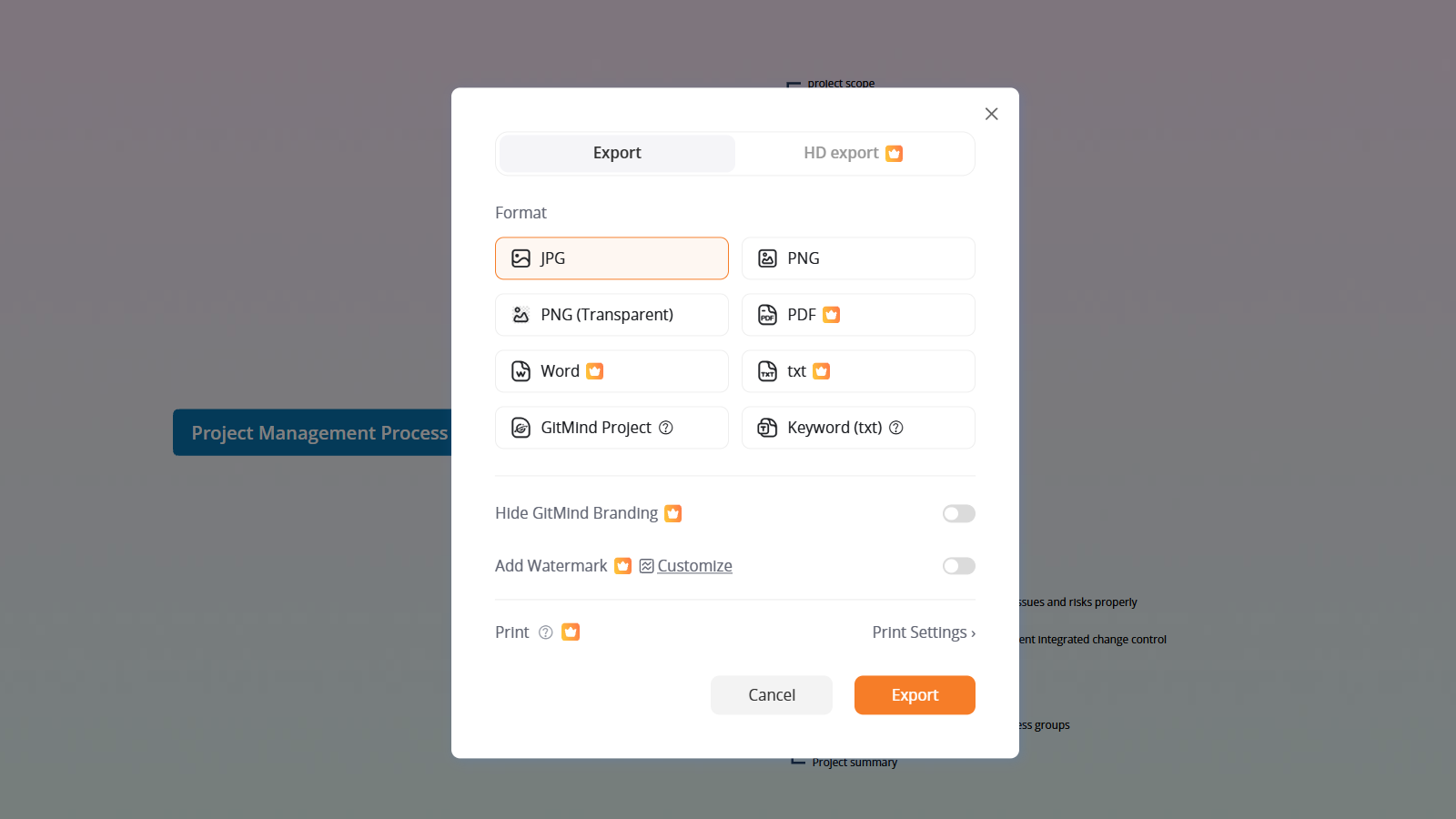
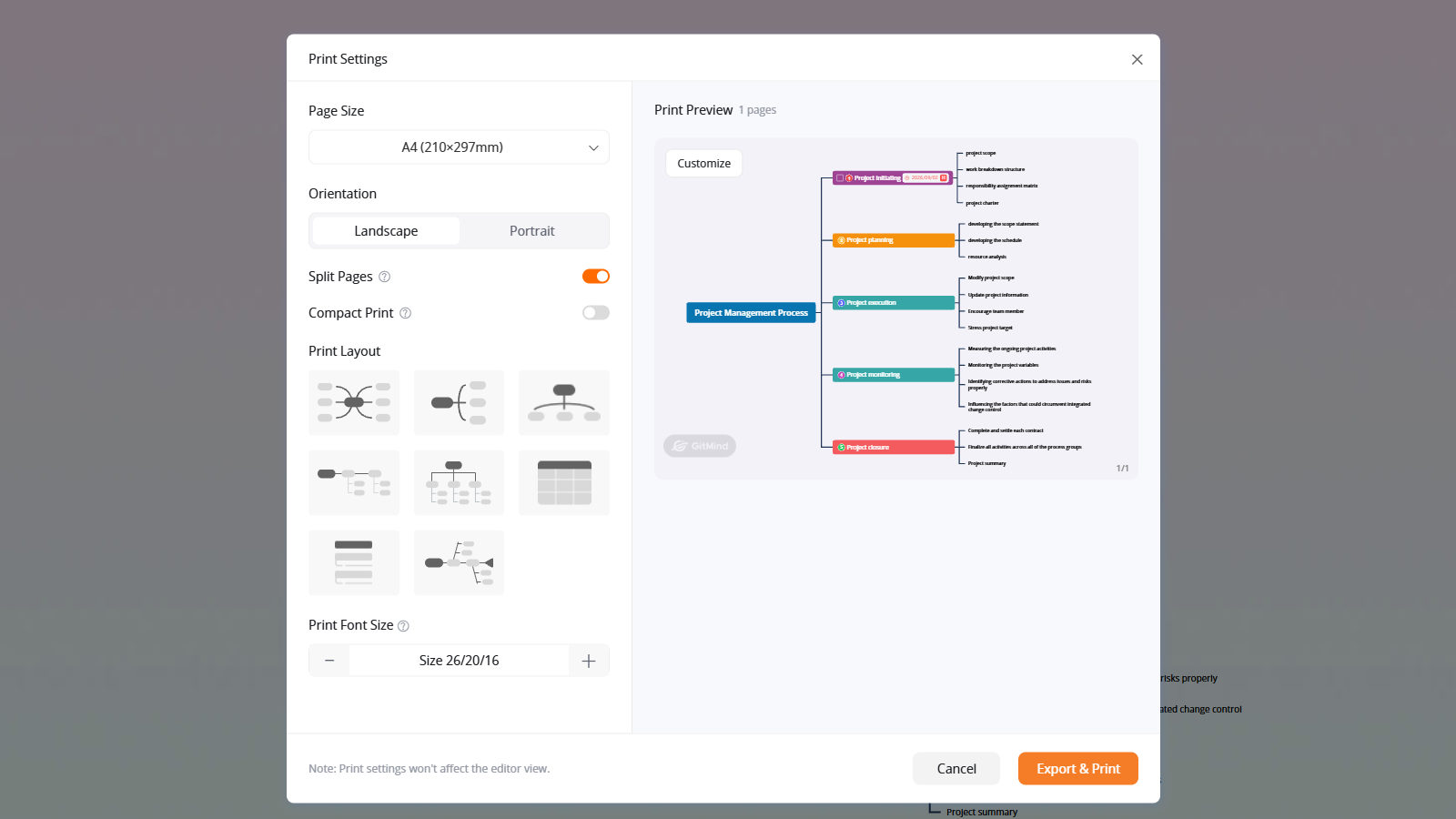
When a large mind map is squeezed onto one sheet, the branch labels can become too small to read. In GitMind, open the map, choose Export → Print Settings, select the paper size and orientation, and turn on Split Pages. Check every page in the preview, adjust the print layout or font size where needed, then choose Export & Print.
GitMind’s print settings let you change the printed version without rearranging the original map in the editor. That is useful when the same map needs to work both on screen and as a handout. The Export window in GitMind’s guide shows a crown beside Print; if your account displays an upgrade prompt, check the plan available to you before following the steps below.
Choose one page or several
There is no ideal page count for every map. The deciding question is whether readers can follow the branches at the size they will actually hold or display.
| Print goal | Start with | Check in the preview |
|---|---|---|
| A compact overview for a meeting | One page, with a layout that gives the main branches room | Can you read the smallest label at normal viewing distance? |
| A detailed classroom or workshop handout | Split Pages enabled | Are labels readable, and can readers follow branches from page to page? |
| A wide map with short labels | Landscape orientation | Does the preview use the width without leaving a crowded edge? |
| A tall, section-heavy map | Portrait orientation or a different print layout | Are related branches still visually grouped? |
If one page works, use it. Splitting helps when shrinking the map would defeat its purpose. The preview is more reliable than guessing from the number of nodes.
Print a large map across pages in GitMind
- Open Print Settings. With the map open, select Export in the upper-right corner, then Print Settings.
- Set the paper size and orientation. Choose a size available in the menu. Try landscape for a wide map and portrait for a taller structure, then compare the previews.
- Enable Split Pages. This lets a map extend across sheets when it does not fit at a readable size. A smaller map may still fit on one page.
- Adjust the print layout. Use the layout options to improve the way branches fit the paper. Turn on Compact Print if unnecessary spacing is consuming room.
- Check the text size. Use the print font controls until labels are comfortable to read. If one page is noticeably denser than the others, select Customize on that page and adjust its layout or font size.
- Review every page, then export. Check the preview from first page to last. Select Export & Print only when the branch order and text remain clear.
GitMind documents these controls in its Print Settings guide. Print layout and font changes in this panel affect the output, not the original map in the editor.
A practical example: a project kickoff map
Imagine a kickoff map with four main branches: goals, workstreams, risks, and decisions. Each branch contains a few short labels, but the risks branch has more detail than the others. On a single-page preview, the whole map looks balanced while the risk labels are hard to read.
Turn on Split Pages and compare orientations. If landscape gives the main branches more room, keep it. Next, check whether the detailed risks page is still crowded. Try Compact Print for excess whitespace, then use the individual-page Customize control if that one page needs a different font size or arrangement. Return to the preview and follow the branches in order as a reader would.
The page count will depend on the map, layout, font size, and paper size. Let the preview guide the final choice rather than aiming for a fixed number of sheets.
Fix common print problems
| Problem | Try this |
|---|---|
| Labels are too small | Enable Split Pages, increase the print font size, or shorten wordy nodes in the original map. |
| One page is crowded | Use that page’s Customize control; consider a different print layout if related branches are pressed together. |
| There is too much empty space | Compare portrait and landscape, then try Compact Print. Do not enlarge text so much that another page becomes hard to follow. |
| A branch is hard to trace between pages | Review the page sequence in the preview. A shorter label or a different print layout may make the relationship easier to see. |
| The physical print differs from the preview | Inspect the exported file and print one test copy before making a class or team batch. Check the printer’s own scaling and paper settings. |
Check the handout before sharing it
Read the smallest labels on a test print at normal distance. Confirm that no branch, connector, or key decision is cut off. If the map relies on color, check whether its groups are still understandable in grayscale. Add a clear title or date to the original map when readers need to distinguish this version from an earlier one.
The goal is a readable handout, not simply a successful export. A two-page map that people can use is better than a single sheet that forces them to zoom in or guess at the labels.

Leave a Comment