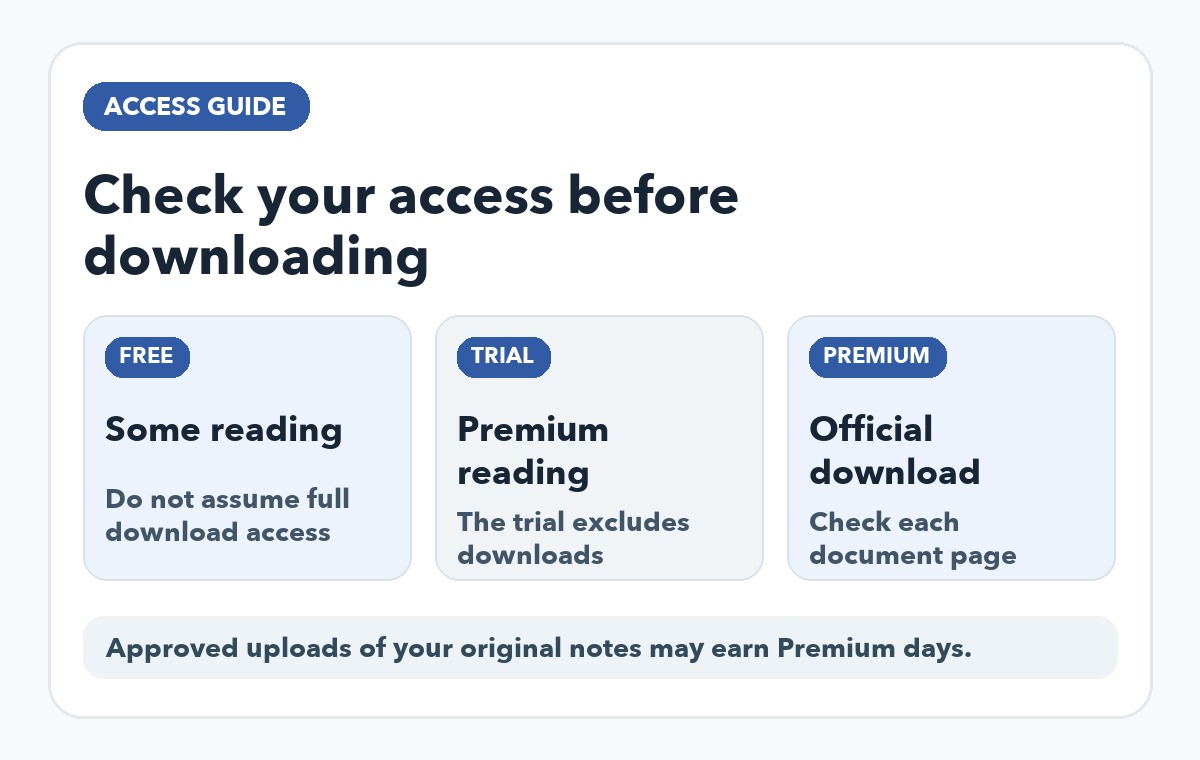
If you need a Studocu document offline, the first question is whether your account has download access, not whether you can see a preview. Studocu says its free trial lets you view Premium material but does not include document downloads. Downloads are a Premium feature. You can pay for Premium or earn temporary Premium access by uploading original study materials that pass review. Studocu trial versus Premium · Ways to get Premium
Pick the route that matches what you need
| What you need | Official route | What to expect |
|---|---|---|
| Read a document now | Open it on Studocu; check what your account can view. The mobile app help page describes free viewing. | Viewing does not give you a file to keep. |
| Save a Studocu document for offline use | Use Studocu’s download feature with an eligible Premium account. | Check the document page and your current account permissions. |
| Get download access without paying for a subscription | Upload your own original notes or exercises and wait for Studocu to approve them for Premium reward days. | An upload is not a guaranteed reward; rejected work earns no days. |
| Find a downloadable textbook rather than that exact Studocu note | Use an open educational source such as OpenStax or course material from MIT OpenCourseWare. | It may cover the subject without matching your instructor’s class. |
This distinction matters when a search result promises a “free Studocu downloader.” A viewable page, a Premium trial, and a downloadable file are three different things. Studocu’s current Premium help page lists downloads on its website and mobile app; its trial help page excludes downloads during the trial.
Download through Studocu
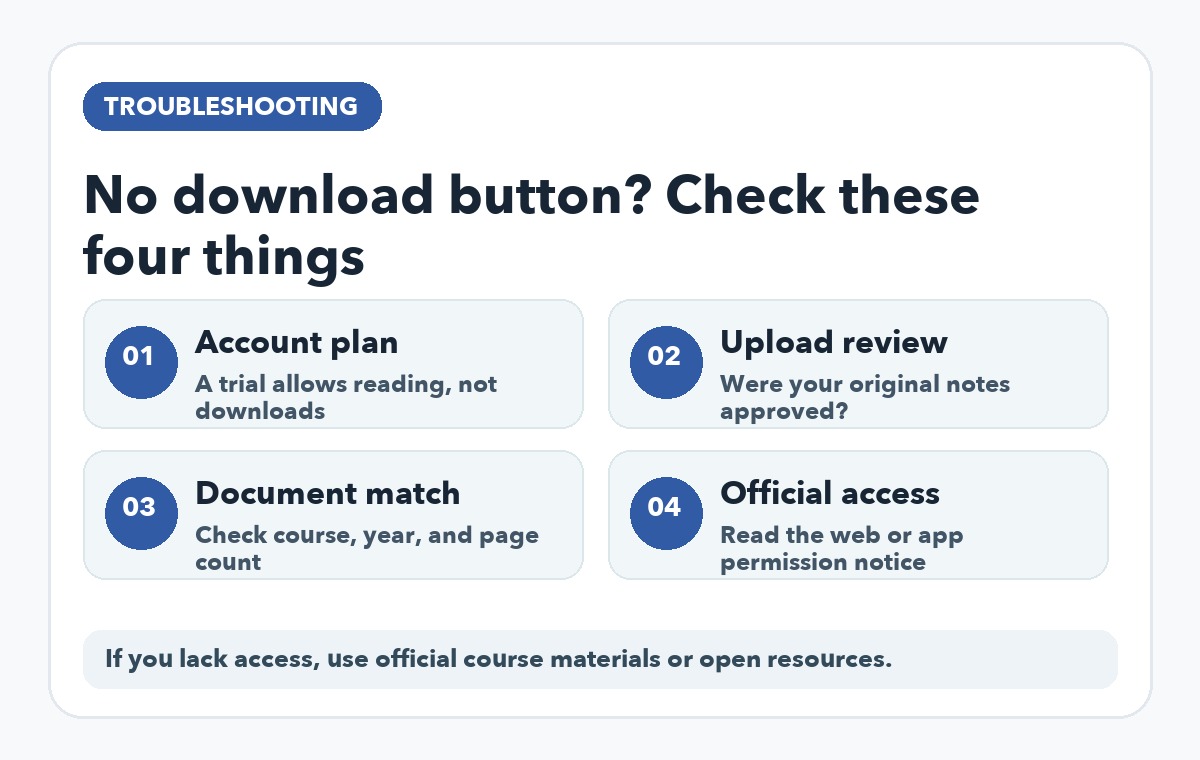
- Sign in and open the document you want. Check its course, school, date, and page count before spending time on it; a note from a different class may not answer your question.
- Look for Studocu’s Download option on the document page or in the app. If the page asks you to upgrade, check the account’s current Premium status. Studocu says downloading is a Premium feature on both platforms.
- Follow the on-screen download prompt, then open the saved item and confirm it contains the pages you expected. The available controls and output can vary by platform and document, so use the options your account actually shows.
- Keep the download for personal study. Under Studocu’s terms, downloaded study materials are for personal use; to share a document with classmates, share its Studocu link rather than forwarding the file.
There is no need to give an unrelated downloader site your Studocu login. A third-party tool also cannot turn a missing permission into a license to use or redistribute a document.
If you are considering a free trial, check its end date and cancellation terms first. Studocu says an uncanceled trial can convert to a paid subscription, while downloading remains unavailable during the trial itself.
Can uploading your own notes make downloads free?
Studocu offers Premium reward days for accepted uploads of original study materials. Its upload guide says you submit the document, complete the required fields, and verify your email if you registered with an email and password. The company reviews uploads before granting the reward. Rejected documents receive no Premium days.
Use work that you created and are allowed to share. Studocu’s accepted-document guidance lists original lecture notes, exercises, summaries, and essays; it says lecture slides, books, copyrighted documents, duplicates, and low-quality scans are generally not accepted. Uploading someone else’s course pack to obtain access is neither a reliable route nor a fair use of that material.
If your upload was accepted but the reward has not appeared, check your approval notice and email verification. Studocu’s reward troubleshooting page explains when verification is required. If you are on a free trial, remember that a trial by itself does not include downloading.
If the document still cannot be downloaded
Start with the course’s own learning system or ask your instructor for the permitted copy. For a general textbook, OpenStax explains how to download its free PDF editions. MIT OpenCourseWare offers course materials that can be saved for later, though not every course includes the same files. These sources solve the “I need usable study material offline” problem without pretending that a different site’s restricted document has become downloadable.
Before relying on a peer note, compare it with your syllabus and assigned reading. A convenient download can still be outdated or based on another instructor’s exam.
Organize material you are allowed to use
Use this workflow only with your own notes, an open textbook, or a file whose terms permit processing in another service. A Studocu document licensed for personal use does not automatically carry permission to upload it to GitMind. If that permission is unclear, write your own brief study notes first.
To turn permitted material into a study map:
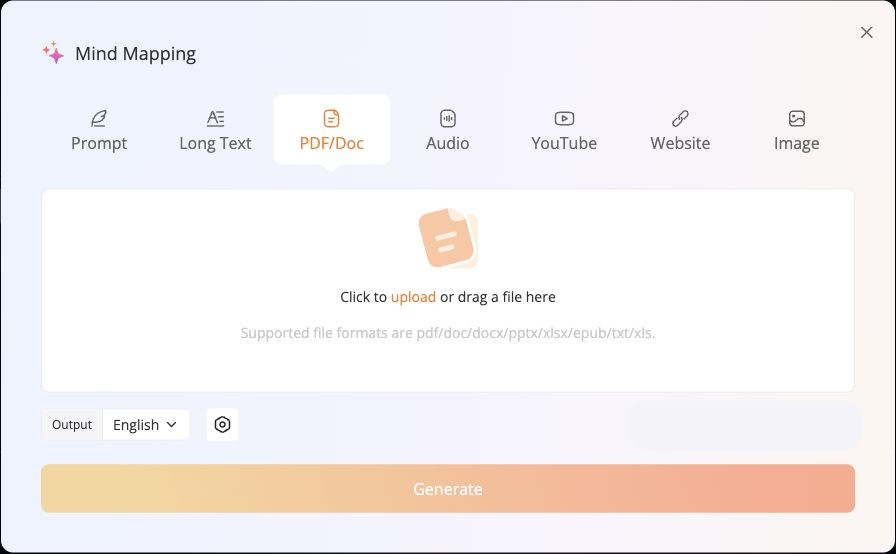
- Open GitMind’s Document to Mind Map tool and select Try it now. In the PDF/Doc tab, click the upload area and choose your own PDF, DOCX, or TXT notes. Start with one file so you can trace each point back to its source.
- Choose the output language. Adjust the model setting if the dialog offers it, check the credits shown in your account, and select Generate.
- Open the resulting map and name the central topic after the course or unit. Edit the branches to separate Core ideas, Definitions or formulas, Examples, and Points to verify. Select a node and press
Tabfor a child orEnterfor a sibling; GitMind’s node guide documents these shortcuts. - Compare every branch with the original syllabus or textbook. Add page references, correct omissions, and remove AI mistakes. Keep the editable map in GitMind; export an image or PDF only when you need a copy of your own notes.
If the source file cannot be uploaded under its terms, create a blank mind map and type in your own summary instead. You can still build the same revision structure without transferring the restricted document.
